
Audience Setup
How to create individual contacts and upload bulk contact lists in the PostGrid dashboard before sending mail.
Before you start sending mails, you need to specify the sender and recipient addresses. PostGrid simplifies this process by allowing you to create contacts directly from the dashboard.
Creating Individual Contacts
Section titled “Creating Individual Contacts”To create contacts, navigate to the Contacts tab located on the left side of the navigation bar.
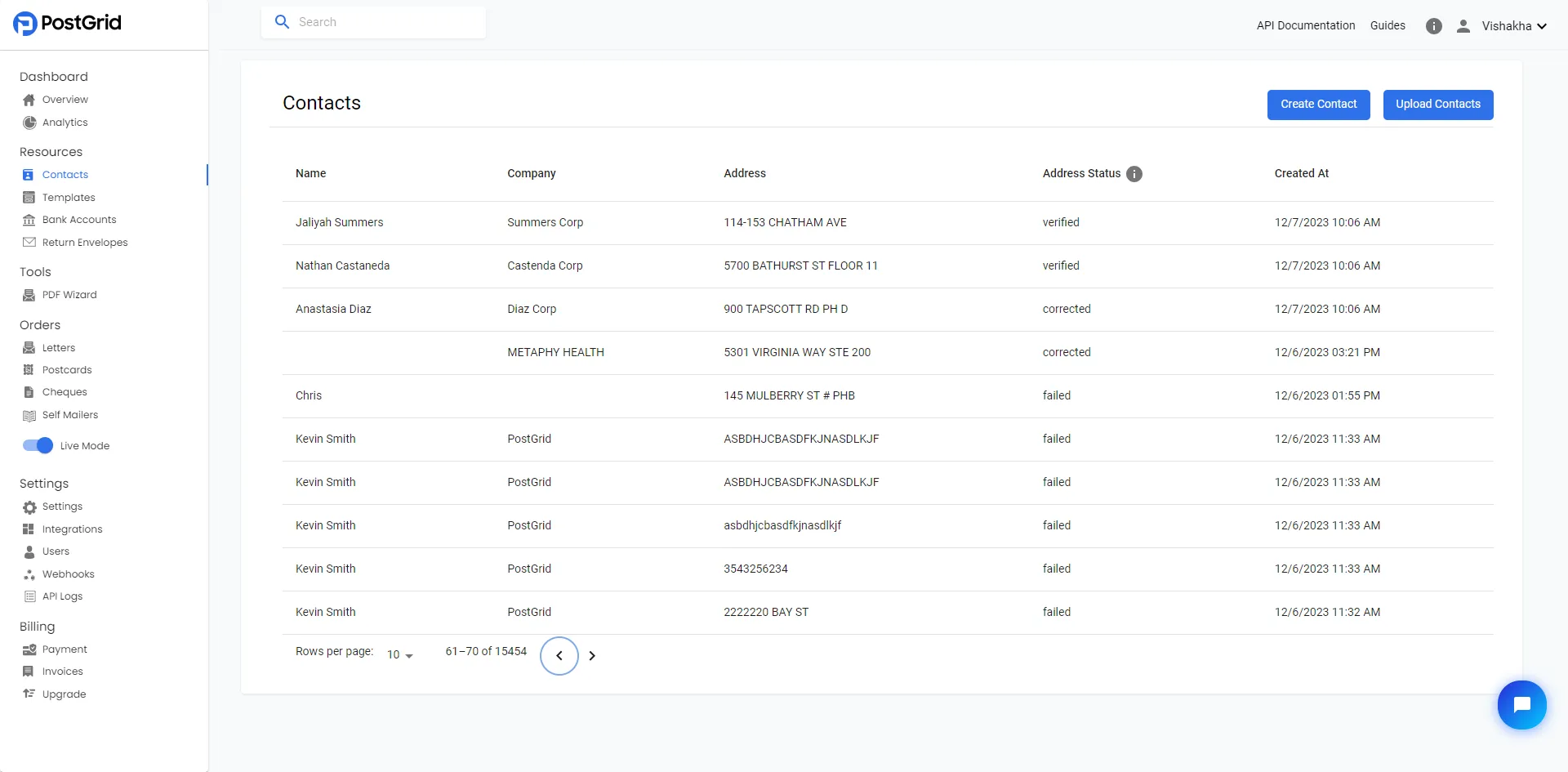
On this page, you can find existing contacts and click on them to get more information. You can also use the search bar at the top to search for contacts using any known information, such as names, company names, or addresses. Let’s click on ‘Create Contact’ in the top-right to create a new contact so that you can send mailings.
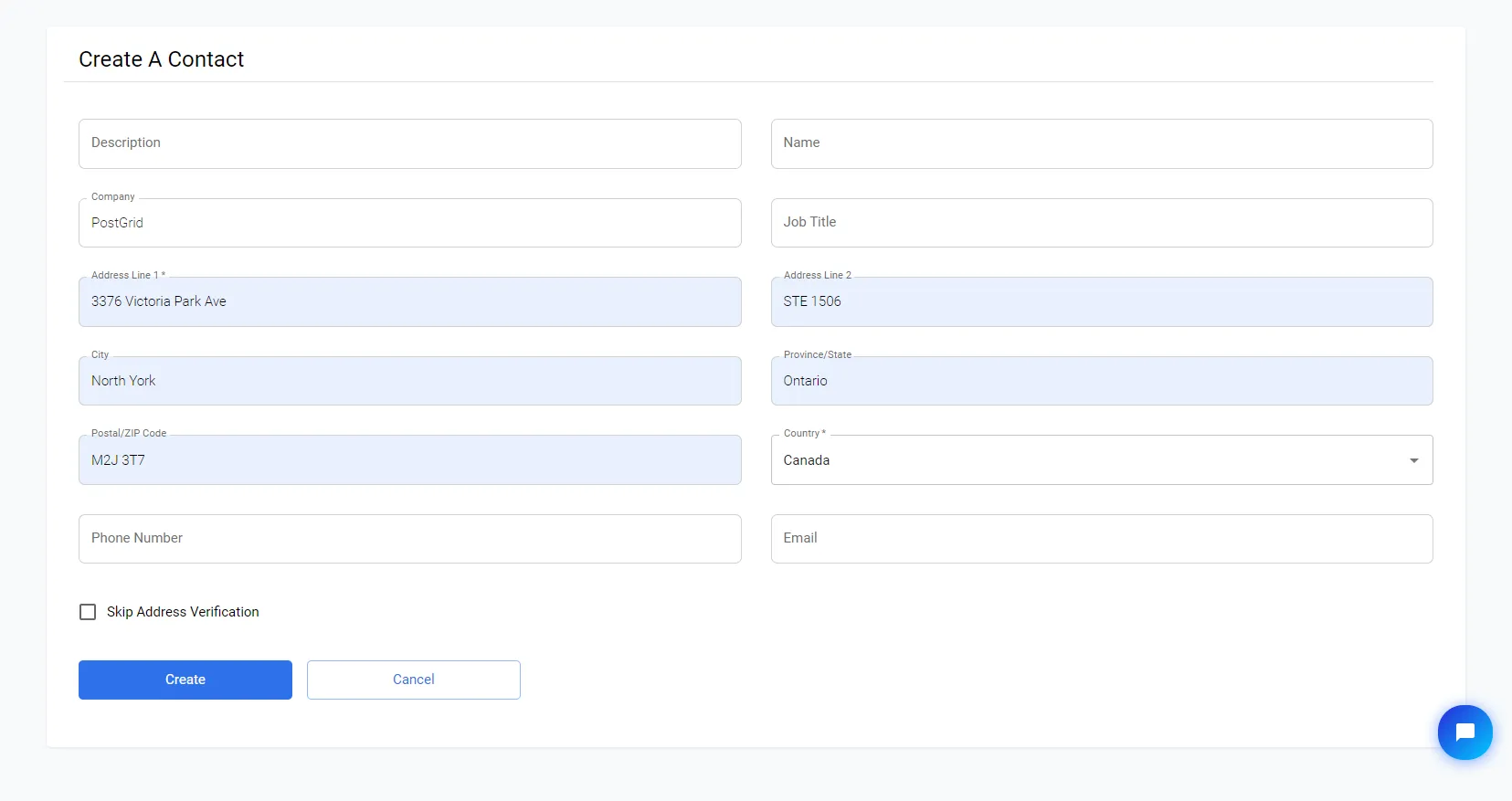
Once you have filled in the required details, click the create button. This will redirect you to the contacts list page, where your newly created contact will be listed at the top. To make changes to contact information, delete a contact, or check if their address is verified, click on the contact in the list page. You will then be redirected to a page with these options.
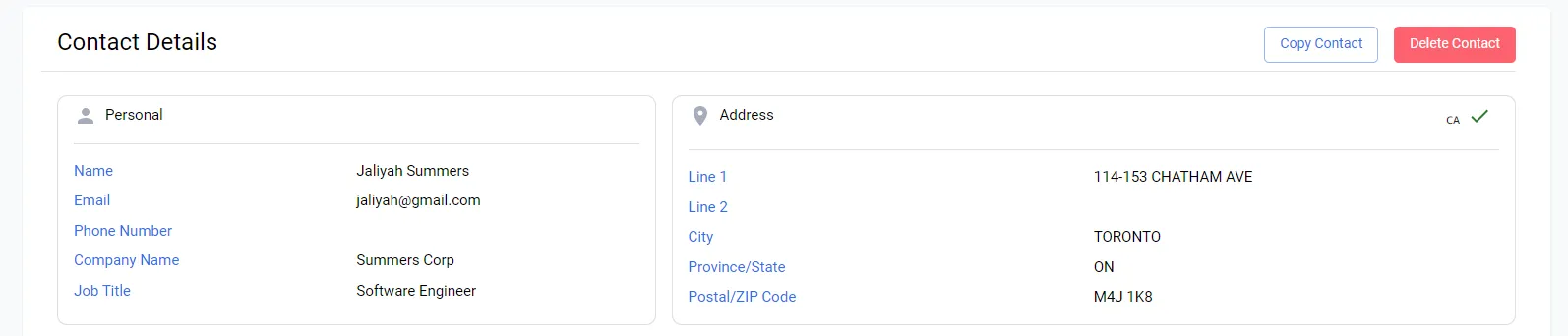
ℹ️ Note for Line 2
Please add the suite identifiers as a prefix along with the suite number in Line 2. The possible suite identifiers include ”#”, “APT”, “STE”, “ST”, etc. Also, add a space between the suite identifier and suite number.
Creating Multiple Contacts
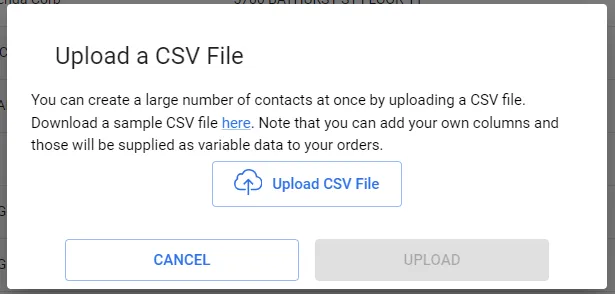
Section titled “Creating Multiple Contacts”If you have multiple contacts that you would like to upload at once, you can use the ‘Upload Contacts’ option found on the contacts page. Here, you can select a CSV file with your contacts separated by lines. For proper formatting of your contact information, refer to the CSV contact list example.
Key Points
Section titled “Key Points”- You can either add the First Name and the Last Name or the Company Name or both based on your preference and the merge variables you are using in the template.
- Please leave optional columns blank if you are not using them.
- Kindly make sure the country code is in the accepted ISO31661 Alpha2 code format (https://www.iso.org/obp/ui/#search)
- Merge variables can be added after the Country Code column. Please make sure the naming for merge variables used in the template matches the column header in the CSV.
Note: One important aspect to differentiate in contacts is whether they are created in live mode or test mode. A contact created in test mode will have their address marked as verified, even though it has not actually been verified. On the other hand, when you create contacts in live mode, PostGrid will verify the address and accurately determine whether local postage can deliver to that address.
Address Standardization and Verification
Section titled “Address Standardization and Verification”PostGrid cleanses all newly created addresses to optimize for maximum deliverability.
- All North American addresses will be automatically standardized, cleansed, and verified through our CASS-Certified Address Verification System before the order is created, either through the API or the dashboard.
ℹ️ This feature is offered at no additional cost with our Print and Mail services.
Please note, Address Verification only happens for the contacts and orders created in LIVE mode. To check the status of address verification, refer to the “Address Status” field on the Contacts page.
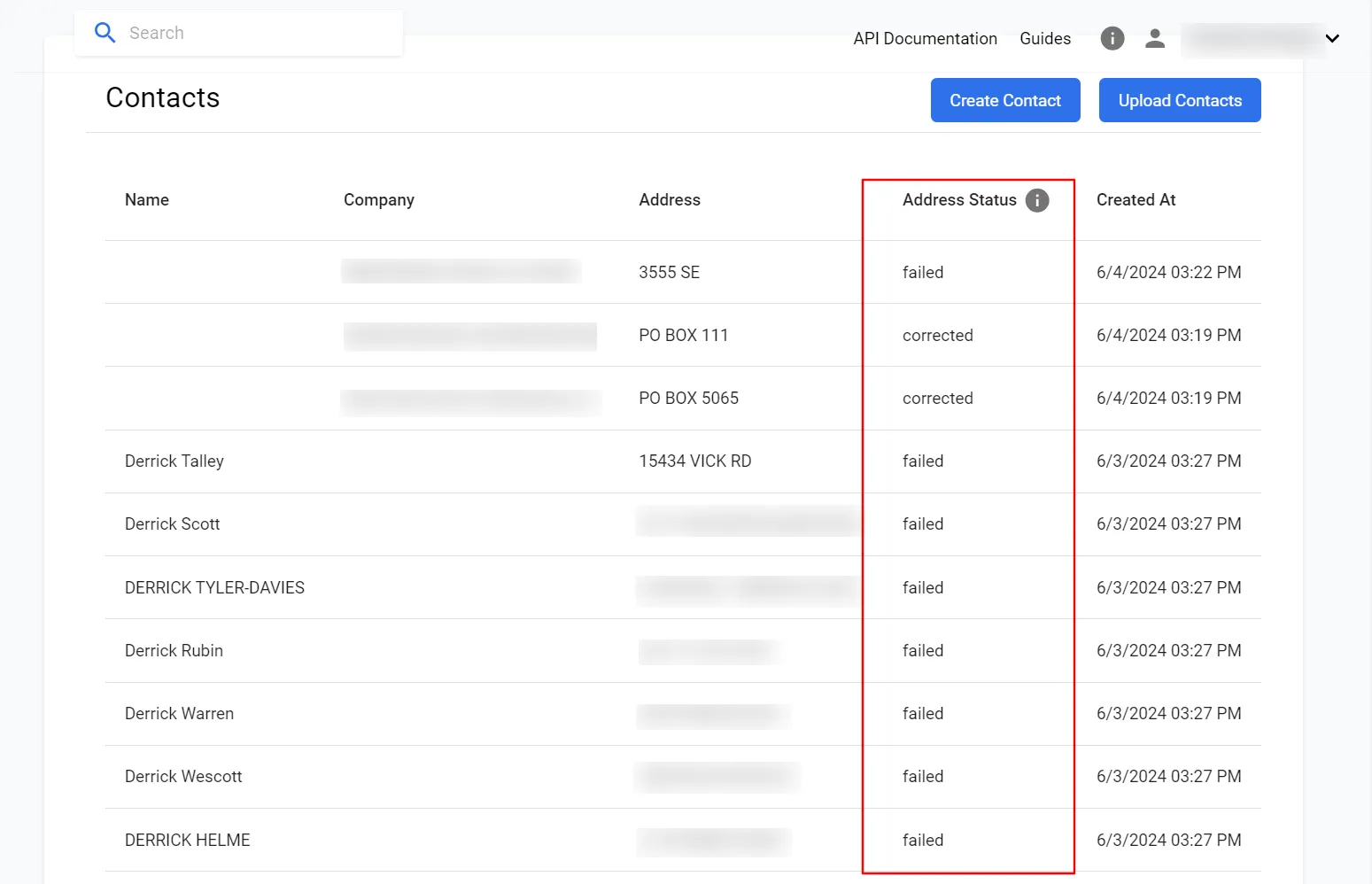
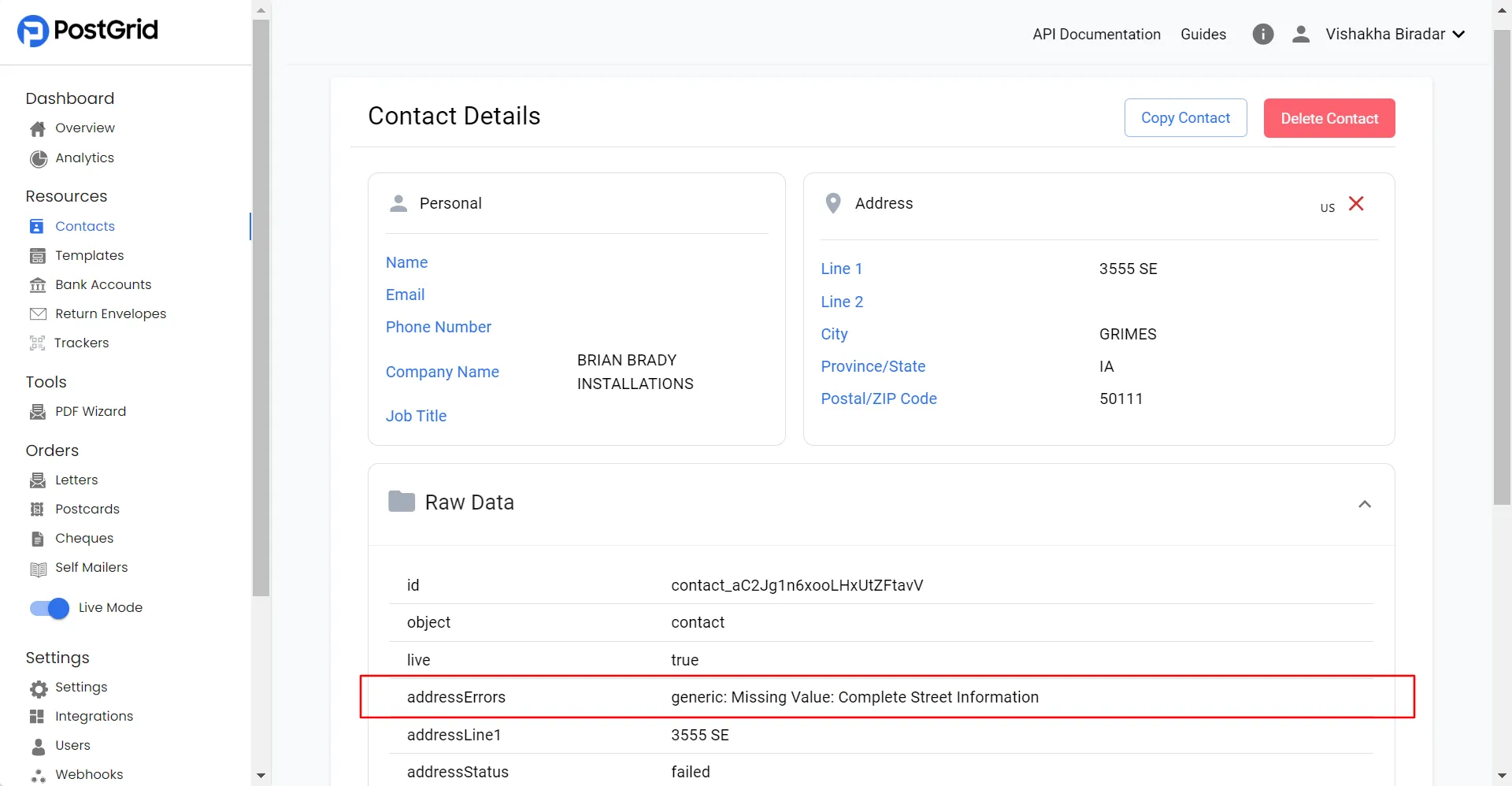
For more details about address verification, click on the contact and check the raw data section.
Address Strictness
Section titled “Address Strictness”For all the mailings you send out, we verify the recipient address for every order. This ensures that your mail reaches the correct audience and reduces the probability of mail returns.
To select your preference, choose an option under Address Strictness on the Settings page.
- Verified: We will only send mailings to recipient addresses that we are able to match against the relevant postal authority’s database and that are deemed deliverable.
- Corrected: We will send mailings to addresses that are verified, as well as addresses we can find an approximate match for. These addresses will be corrected according to the required standards of the respective carrier.
- Corrected to Street: We will send mailings to verified and corrected addresses, as well as US addresses that match at the street level where the secondary identifier (suite, unit, or apartment number) is missing or cannot be confirmed. For addresses outside the US, this option behaves the same as Corrected.
- Failed: We will attempt to send mailings to all recipient addresses, regardless of their verification status.
🚧 Corrected to Street and Failed: US orders may be cancelled after submission
Address strictness determines which addresses PostGrid will accept for an order. It does not guarantee that every accepted address will be mailed.
US addresses are additionally processed through CASS and NCOA during production, after your order has been created. The final mailing address may differ from the one in your API request or Dashboard. Addresses that do not meet USPS requirements at that stage are cancelled rather than mailed. Because this check occurs after submission, a cancellation may be reported several days after you send.
Note that the address strictness applies to both Sender and Recipient Address.
Coding Accuracy Support System (CASS)
Section titled “Coding Accuracy Support System (CASS)”Coding Accuracy Support System (CASS) is a USPS certification for vendors that help clients with address standardization and validation. This certification allows address verification services to pass a test and prove that they are capable of providing top-notch solutions to clients. Also, they get better access to the USPS authoritative databases and NCOA files.
PostGrid’s address verification API and software are CASS-certified, allowing you to update, standardize, and validate your mailing lists by comparing them with the official Post Office records.
National Change of Address (NCOA)
Section titled “National Change of Address (NCOA)”NCOALink is a USPS product to record all Change-of-Address (COA) requests.
The Post Office stores hundreds of millions of permanent COA records in its NCOA datafile, including-
- Names of individuals, families, and businesses, and
- Their old and new delivery addresses.
Adding Merge Variables to the CSV
Section titled “Adding Merge Variables to the CSV”To specify merge variables, use curly braces like {{variableName}}. You can
also access the following predefined merge variables in your template.
| Name | Type | Description |
|---|---|---|
| to | Contact | The recipient info e.g. {{to.firstName}}, {{to.companyName}} |
| from | Contact | The sender info e.g. {{from.firstName}}, {{from.companyName}} |
Acceptable Default Merge Variable Values for Contacts
Section titled “Acceptable Default Merge Variable Values for Contacts”The following values are default values for contacts that can be used in the
{{to.variable}} format.
Recipient Merge Variables
Section titled “Recipient Merge Variables”| Template Format | CSV Header Name |
|---|---|
{{to.addressLine1}} | Address Line 1 |
{{to.addressLine2}} | Address Line 2 |
{{to.provinceOrState}} | Province or State |
{{to.city}} | City |
{{to.postalOrZip}} | Postal or Zip |
{{to.country}} | Country |
{{to.firstName}} | First Name |
{{to.lastName}} | Last Name |
{{to.email}} | |
{{to.phoneNumber}} | Phone Number |
{{to.companyName}} | Company Name |
{{to.jobTitle}} | Job Title |
Sender Merge Variables
Section titled “Sender Merge Variables”| Template Format | CSV Header Name |
|---|---|
{{from.addressLine1}} | Address Line 1 |
{{from.addressLine2}} | Address Line 2 |
{{from.provinceOrState}} | Province or State |
{{from.city}} | City |
{{from.postalOrZip}} | Postal or Zip |
{{from.country}} | Country |
{{from.firstName}} | First Name |
{{from.lastName}} | Last Name |
{{from.email}} | |
{{from.phoneNumber}} | Phone Number |
{{from.companyName}} | Company Name |
{{from.jobTitle}} | Job Title |
Non-default Merge Variables
Section titled “Non-default Merge Variables”To add any other dynamic variables to the template, ensure that the CSV has the exact same value (case sensitive) as mentioned in your HTML templates.
| Template Format | CSV Header Name |
|---|---|
{{to.metadata.Revenue}} | Revenue |
{{to.metadata.amount}} | amount |
{{to.metadata.Renewaldate}} | Renewaldate |
Handling C/O and ATTN Lines
Section titled “Handling C/O and ATTN Lines”If you include a C/O or ATTN line in a contact’s address, PostGrid moves it
out of the address fields and into the contact’s name or company field. This
happens automatically when the contact is created or updated.
Why We Do This
Section titled “Why We Do This”Address verification checks the address against official postal data. C/O and
ATTN lines are not part of the official address, so leaving them in the
address fields can cause an otherwise valid address to fail verification.
Moving the line out lets the address verify correctly while keeping the recipient instruction on the mailpiece.
Where the Line Ends Up
Section titled “Where the Line Ends Up”The line is placed in the field that makes the most sense based on what you have already provided. C/O and ATTN are not handled identically, so check the column that applies to you:
| What You Provided | C/O | ATTN |
|---|---|---|
| No first or last name | First Name | First Name |
| A name, but no company name | Company Name | Not retained |
| Both a name and a company name | Not retained | Not retained |
When a line is not retained, it is removed from the address and does not print on the mailpiece.
There is one exception to the table. If address verification identifies a business at the address, the verified business name is used as the Company Name. A C/O line that would otherwise have been placed in Company Name is not retained in that case.
To control where the line appears, do not put it in the address at all. Enter the C/O or ATTN text directly into the First Name or Company Name field yourself. This is the recommended approach for any contact that already has a recipient name. First Name is the more reliable of the two, since Company Name can still be replaced by a verified business name.
How It Looks on the Mailpiece
Section titled “How It Looks on the Mailpiece”The name and company print directly above the address block, so a retained C/O or ATTN line appears in the position a recipient would expect.
Formatting
Section titled “Formatting”All of these forms are recognized:
C/O JOHN DOEc/o John DoeATTN: Accounts PayableATTN - Accounts Payable
The prefix is standardized to uppercase C/O or ATTN and the colon or dash is
removed. Text before and after the marker on the same line is kept.
Note that recognition is the same for both prefixes, but where the line ends up is not. See the table above.
CSV Uploads
Section titled “CSV Uploads”The same handling applies when you upload contacts from a CSV. There is no dedicated CSV column for a C/O or ATTN line.
If your file has a separate column for it, map that column to First Name or
Company Name, following the table above. This gives you control over exactly
where it lands and is the safest option.
If the line sits inside Address Line 1 or Address Line 2 instead, it will be
pulled out of the address and placed automatically, same as any other contact.
Either way, review the uploaded contacts before sending. Rows with an ATTN line and a recipient name are the ones to check, since the line is not retained in that case.
Things to Keep in Mind
Section titled “Things to Keep in Mind”- Use one C/O or ATTN line per contact. If both address lines contain one, only the first is retained.
- ATTN is not retained when a recipient name is present. If you need an ATTN line on a contact that also has a first or last name, enter it in the First Name or Company Name field directly.
- Keep it short. The line is placed into a name or company field, and very long text may not fit cleanly on the printed piece.
- This applies to live mode only. Contacts created in test mode are not processed this way.
- If verification is skipped for a contact, the address lines are left exactly as submitted. (Skipping Address Verification is not recommended unless absolutely required, as the orders might potentially get cancelled during production.)
Adding and Deleting Addresses
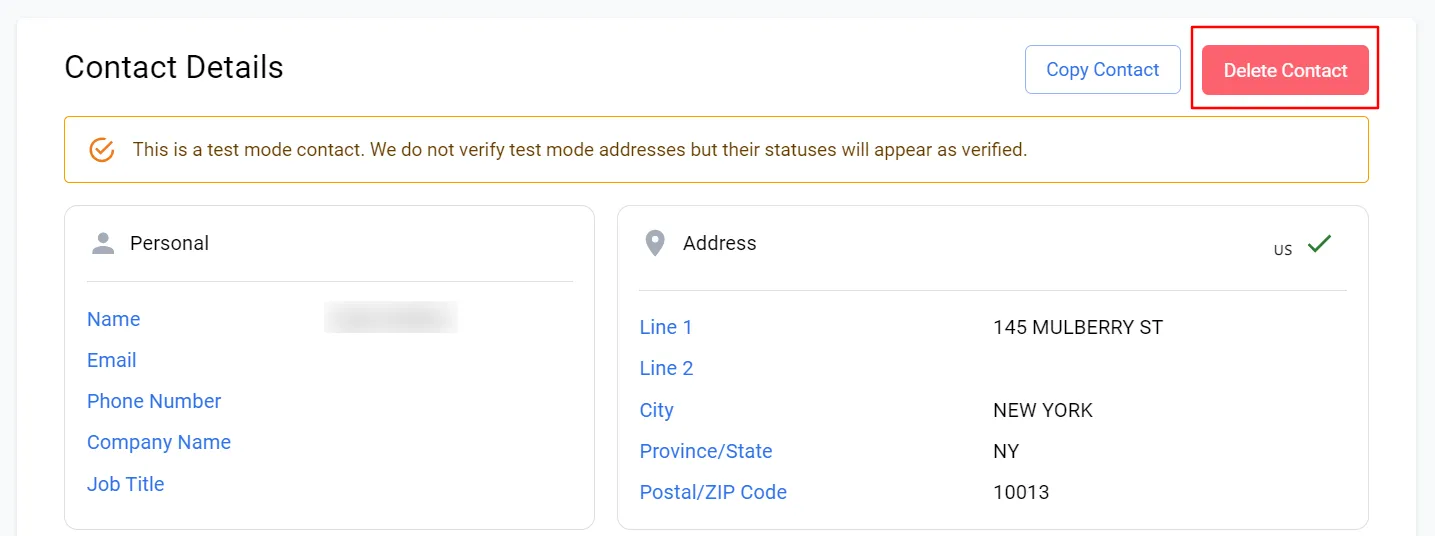
Section titled “Adding and Deleting Addresses”You cannot edit any existing addresses via the dashboard or API request. However, you can delete the current address and add a new one with the updated information. To delete the contact, click on the contact and then click on ‘Delete’.
Address Verification Errors
Section titled “Address Verification Errors”Below is a comprehensive guide for diagnosing and resolving address verification errors.
Table 1 describes the primary errors:
Section titled “Table 1 describes the primary errors:”| Primary Error | Description |
|---|---|
| Alternate | Changed the Input value to an alternate value |
| Would not fit | The address does not fit within the required address field |
| Incorrect Value | The address has incorrect information |
| Missing Value | The input address is missing required information |
| Typo in Value | Typing error in the input address |
| Verbosity | The address is unnecessarily lengthy, redundant, or overly detailed, making it harder for the system to read and understand |
Table 2 describes the error details associated with the primary errors:
Section titled “Table 2 describes the error details associated with the primary errors:”| Error Detail | Description |
|---|---|
| Addressee and/or Additional Delivery Information | The name of the recipient and any extra delivery instructions |
| Complete Street Information | The complete street address, including house or building number, street name, and type |
| Civic number | The numeric portion of the street address, representing the house or building number |
| Civic number suffix | Any additional characters or letters that accompany the civic number |
| Street name | The designated name of the street |
| Street type | The classification of the street, such as Avenue, Road, or Boulevard |
| Street direction | The cardinal direction (N, S, E, W) associated with the street name |
| Suite keyword | The term used to indicate the presence of a suite, such as “Apt”, “Unit”, or “Ste” |
| Suite identifier | The number or letter that specifies a particular suite, unit, or apartment within a building |
| Delivery Information | General information pertaining to how and where the delivery should be made |
| Complete Route Service Information | The full route service details, typically used in rural delivery systems |
| Route Service Keyword | A term indicating the type of route service, such as “RR” for Rural Route |
| Route Service identifier | The numeric or alphanumeric identifier associated with a specific route service |
| Complete PO Box/Bag Information | The entire PO Box or bag address information for mail destined for post office storage |
| PO Box/Bag keyword | The term indicating PO Box or bag for delivery, e.g., “PO Box” |
| PO Box/Bag identifier | The number or code assigned to a specific PO Box or mail bag |
| Complete General Delivery Information | Full details for general delivery; used when a recipient has no fixed address |
| General Delivery keyword | The term used for mail pickup at a post office by someone without a fixed address; Temporary mailing address |
| Complete Delivery Installation Information | Details regarding the post office or delivery facility where mail is processed |
| Delivery Installation Area Name | The name of a village, town, city, or metropolitan area which is served by a postal delivery installation |
| Delivery Installation Type | The classification of the postal installation, such as “Post Office”, “Mail Depot”, “Lock box address” etc. |
| Delivery Installation Qualifier | Identifies the portion of the area served by the installation. |
| Municipality | The city or town where the recipient is located |
| Province | The provincial designation in the address |
Table 3 lists additional standalone primary errors:
Section titled “Table 3 lists additional standalone primary errors:”| Primary Error | |
|---|---|
| Rural validated on postal code only | The input address was identified as rural. For such addresses, Canada Post only provides data to verify the postal code’s validity, not the specific details of individual houses or streets. |
| Unable to find a match for this address | Address verification failed because the system couldn’t find a match for the address in the USPS or Canada Post database. |
| Not enough information | Address verification failed because the provided information is insufficient for the system to find a match in the USPS or Canada Post database. |
Possible Error Combinations
Section titled “Possible Error Combinations”line1: Incorrect Value: Suite identifiergeneric: Missing Value: Complete Street Information; city: Incorrect Value: Municipalityline1: Missing Value: Suite identifiergeneric: Unable to find a match for this addressgeneric: Not enough information.city: Missing Value: Municipality