
US Businesses with ZIP and Radius
How to build targeted B2B mailing lists in PostGrid by filtering US businesses by location, industry, employee count, and NAICS codes.
Target businesses in ZIP codes around a given location.
What is this feature?
Section titled “What is this feature?”The PostGrid B2B List Builder enables you to generate customized mailing lists of US businesses by specifying a location and applying firmographic filters. Instead of sourcing your own business contact data, you can dynamically build a targeted audience of businesses that match your campaign’s criteria — ideal for reaching specific industries, business types, or company sizes within a defined geographic area.
How can I use it?
Section titled “How can I use it?”You can access the List Builder as a standalone tool or as part of creating a new campaign.
As a standalone tool
Section titled “As a standalone tool”-
From your PostGrid dashboard, navigate to Tools → List Builder in the left-hand sidebar.
-
Click Build a List in the top right corner.
-
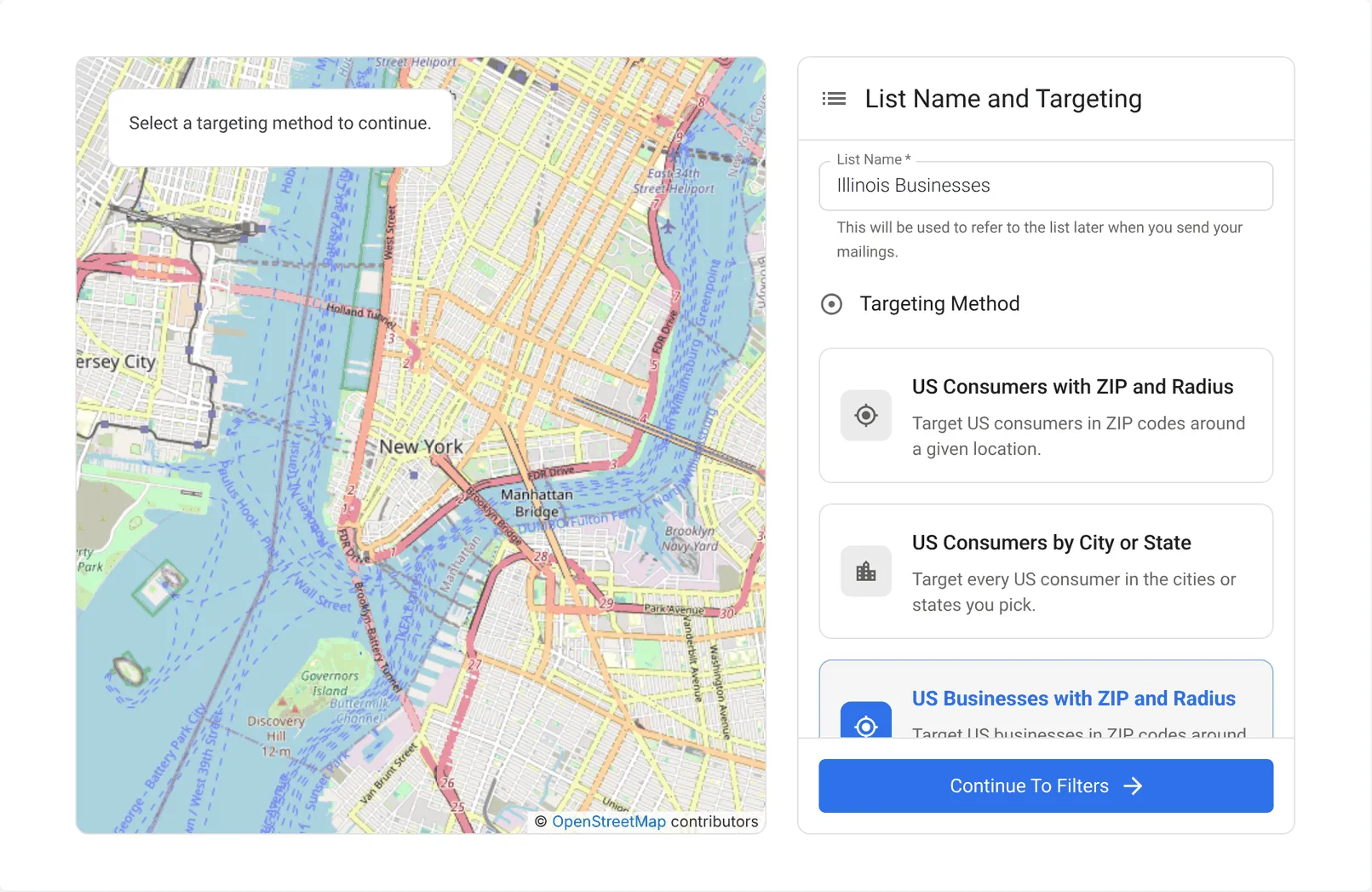
Enter a descriptive name for your list in the List Name field.
-
Under Targeting Method, select US Businesses with ZIP and Radius and click Continue to Filters. To target a whole city or state instead, see US Businesses by City or State.
-
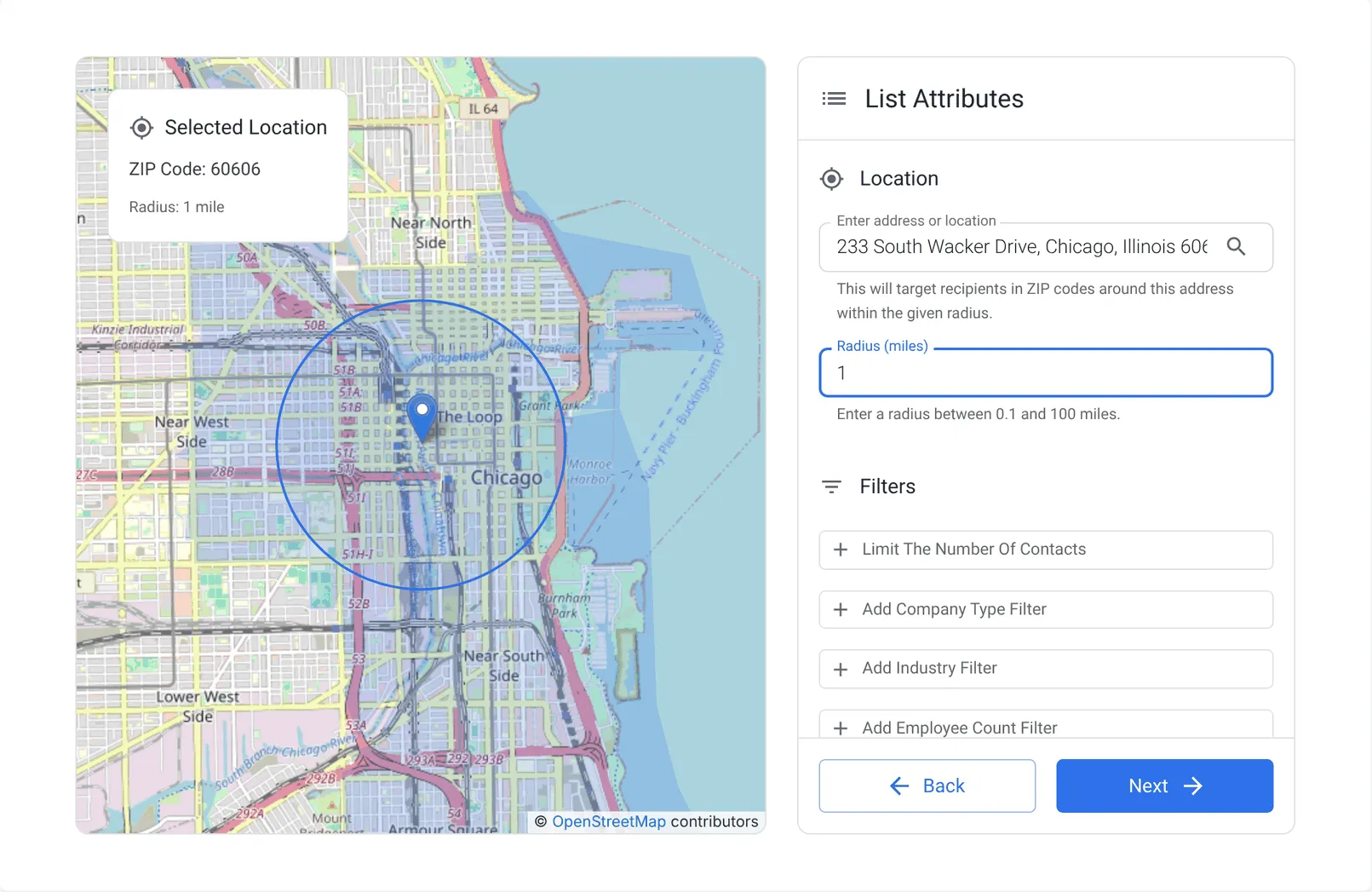
In the Location field, enter an address, city, or ZIP code. The map will update to reflect your selection.
-
Adjust the Radius (miles) to define the geographic area around your chosen location. Enter a radius between 0.1 and 100 miles.
-
Optionally apply any of the following filters:
- Limit: Set a maximum number of contacts for your list.
- Company Type: Filter by ownership structure (e.g., Private, Public, Public Subsidiary, Nonprofit, Government, Educational).
- Industry: Search and select one or more industries to target (e.g., retail, financial services, hospital & health care).
- Employee Count: Set a minimum and maximum range for the number of employees.
- NAICS Codes: Enter specific NAICS codes to target businesses by their primary business activity.
- Tags: Enter relevant tags to further refine your audience (e.g., b2b, saas, enterprise).
- Founded Year: Set a range for the company’s founding year.
-
Click Next to generate your quote.
-
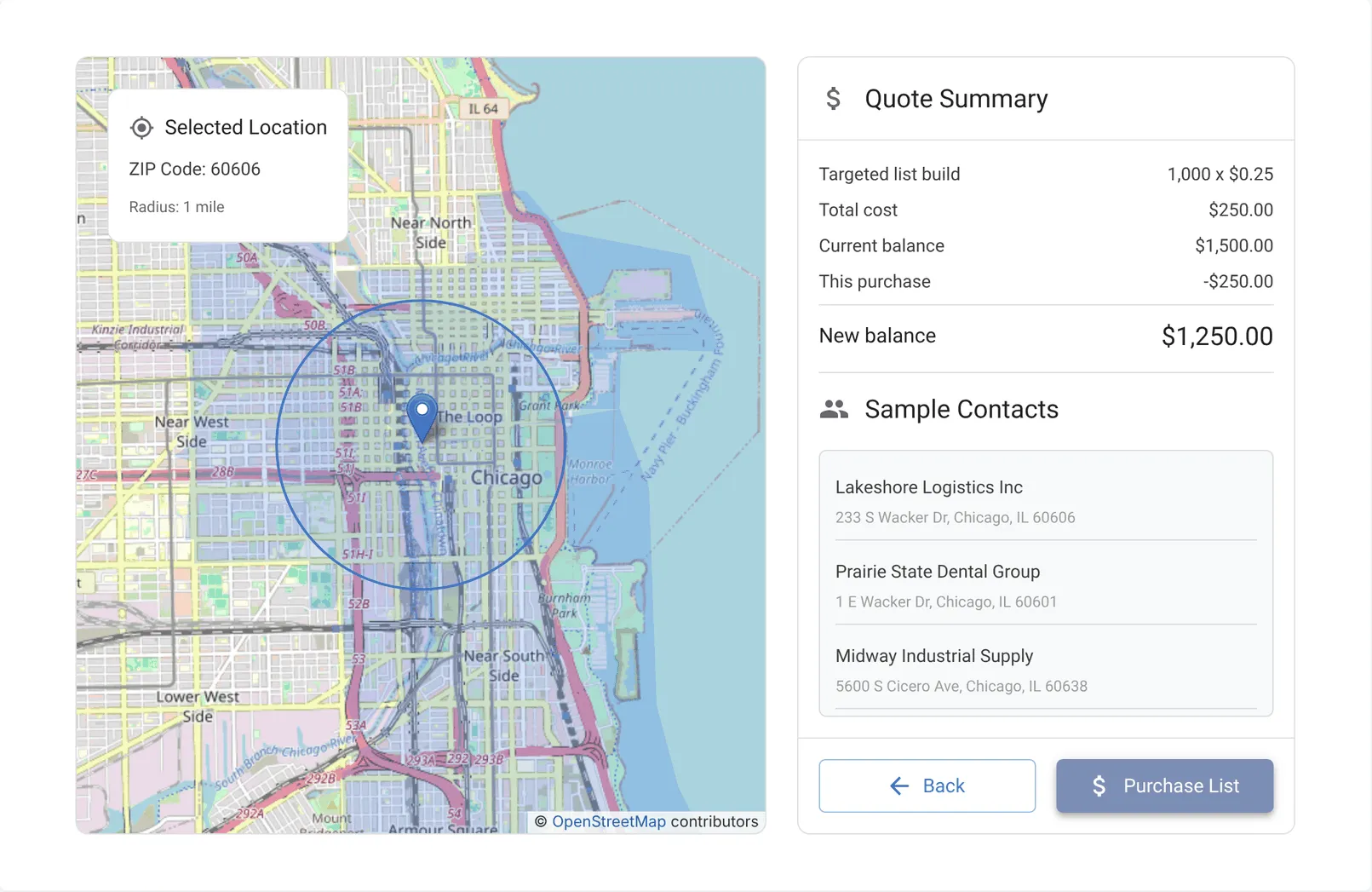
Review the Quote Summary, which shows the number of contacts and the price per contact, the total cost, your current balance, and your balance after the purchase. Sample contacts will also be shown.
-
Click Purchase List to finalize and build your mailing list.
As part of the campaign flow
Section titled “As part of the campaign flow”When creating a new campaign, select Build a list on the Mailing List step. This will take you through the same list-building steps outlined above. Once purchased, the list will be automatically associated with your campaign.
How do I get billed for it?
Section titled “How do I get billed for it?”List purchases are paid from your PostGrid account balance. Generating a quote is free. You’re charged only when you click Purchase List.
The Quote Summary shows exactly what you’ll pay before you purchase:
- Targeted list build: the number of contacts × the price per contact
- Total cost
- Current balance
- This purchase
- New balance
If your balance doesn’t cover the purchase, the Quote Summary shows an Insufficient Funds message and you can’t purchase the list. Contact sales, or your account administrator, to add funds.
Q. Can I reuse lists I’ve built?
A. Yes. Any list you purchase is saved to your PostGrid account and can be
reused in future campaigns by choosing Select a previous list on the
Mailing List step during campaign creation.
Q. Are the contacts in the generated lists verified? A. Yes. Contacts provided by the B2B List Builder are sourced from high-quality data providers.
Q. What’s the difference between B2B and B2C list building?
A. The B2B List Builder targets businesses using firmographic filters like
industry, company type, and employee count. The B2C List Builder targets
individual consumers using demographic filters like age, income, and gender. See
US Consumers with ZIP and Radius
for more details.